Step-by-step guide
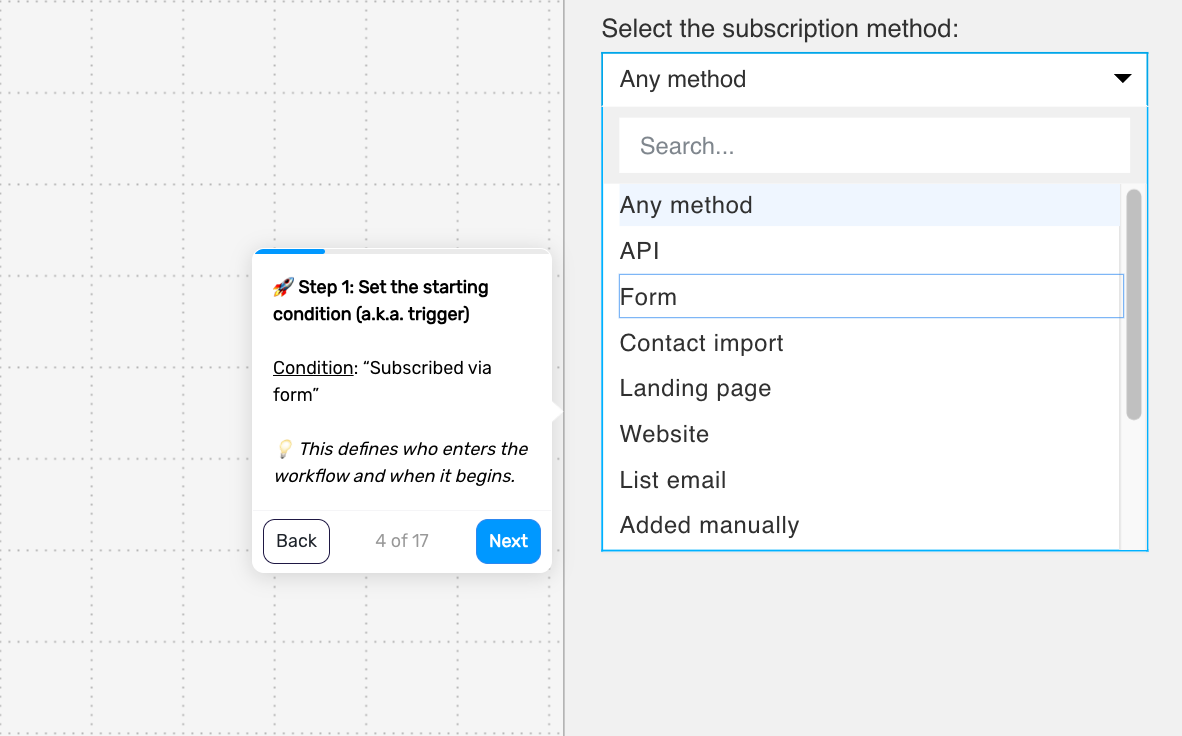
Step 1. Define when the flow is triggered
Trigger the flow when someone subscribes to your list. This ensures every new contact enters the welcome experience immediately, while their interest is still fresh.
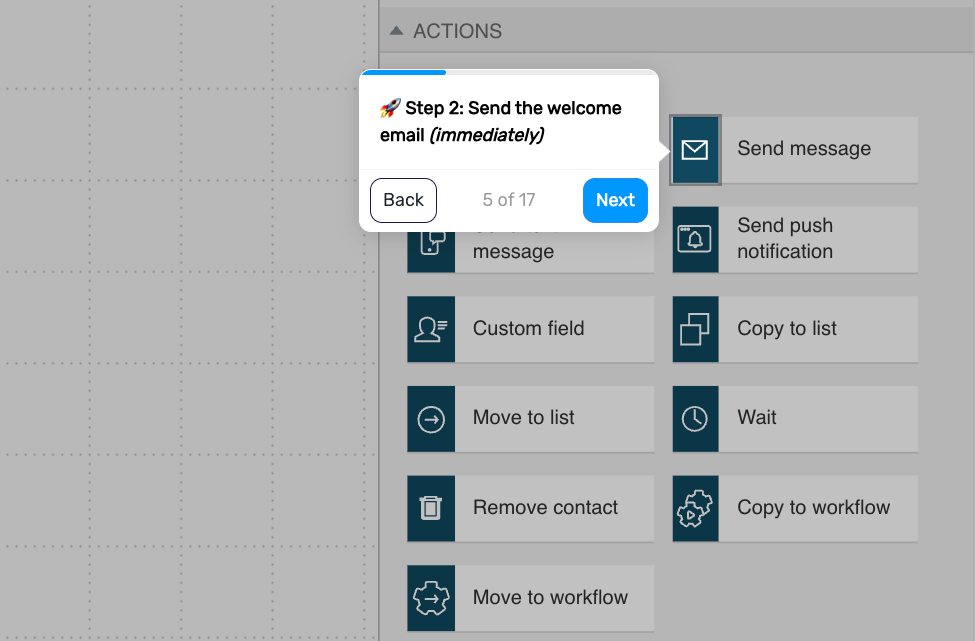
Step 2. Send the welcome email
Send your first message right after signup. This is your first impression, so keep it clear, useful, and easy to act on.
Include:
a discount code or lead magnet
a short introduction to your brand
a clear call to action
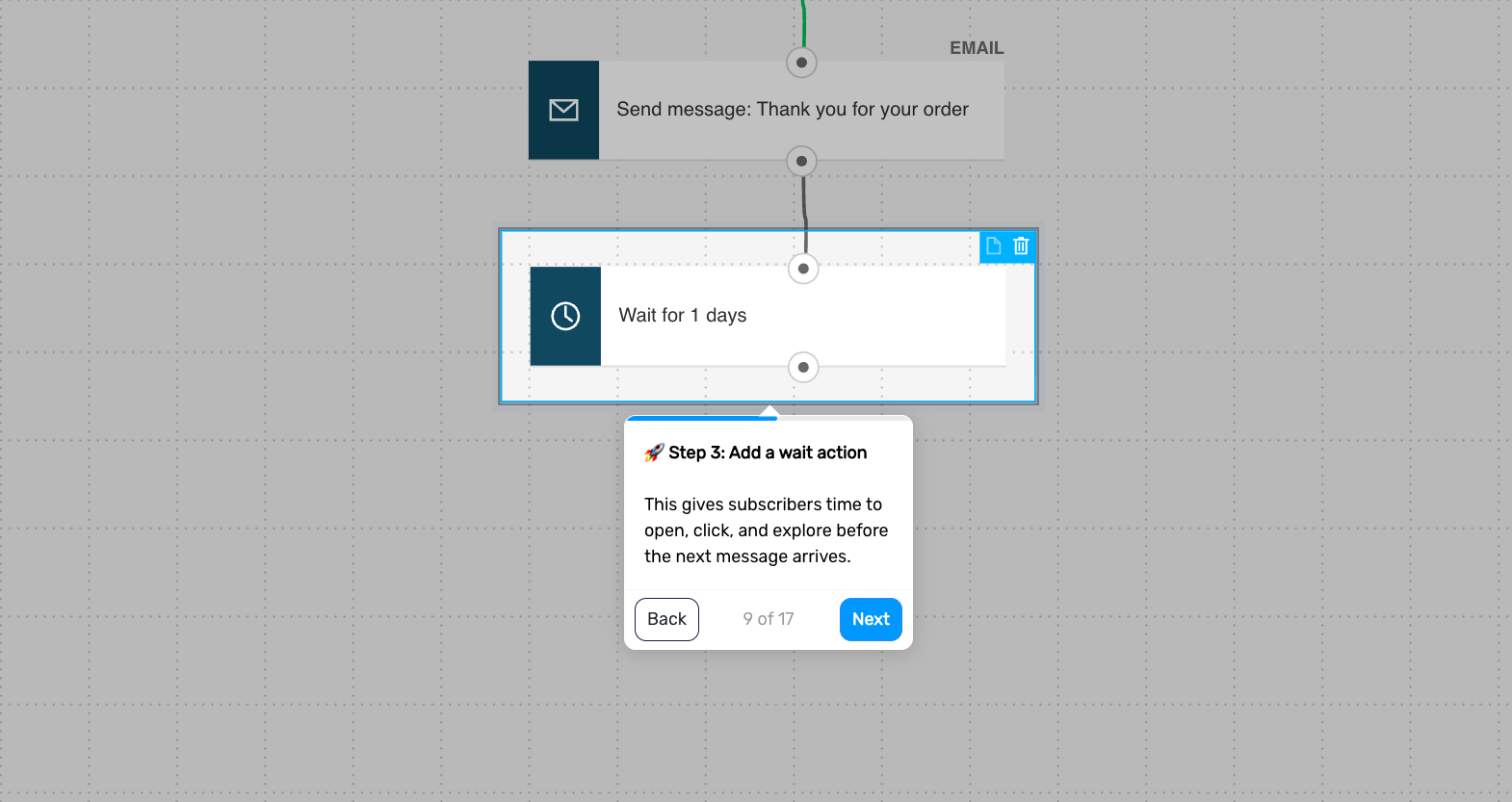
Step 3. Add a delay
Wait before the next message. This gives subscribers time to explore your offer and interact with yo_ur first email.
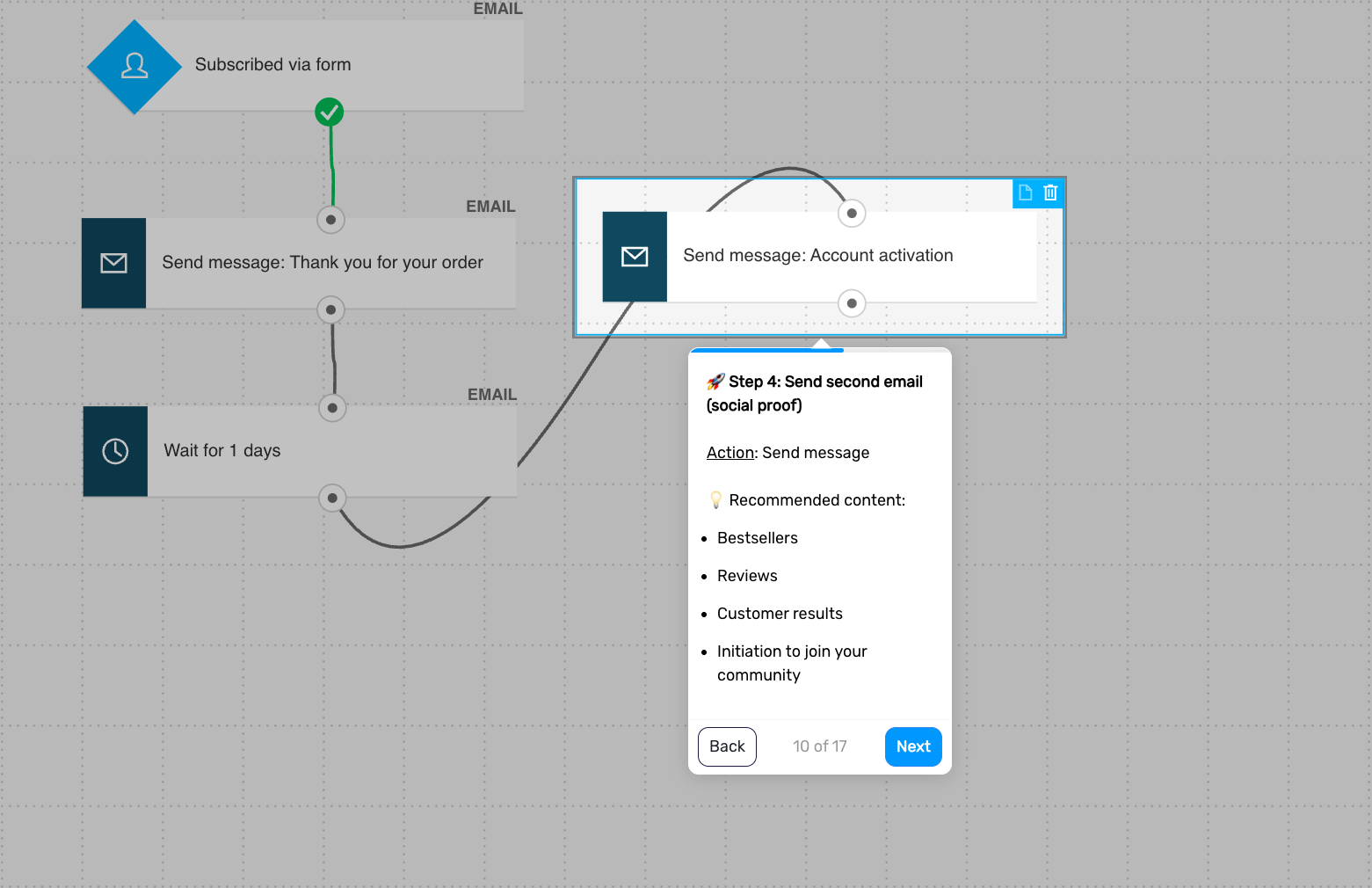
Step 4. Send a follow-up with social proof
Follow up with a message that builds confidence and reduces hesitation.
Focus on:
bestsellers
reviews
customer results
links to your community or social channels
Step 5. Add another delay
Wait again to keep the flow paced without overwhelming new subscribers.
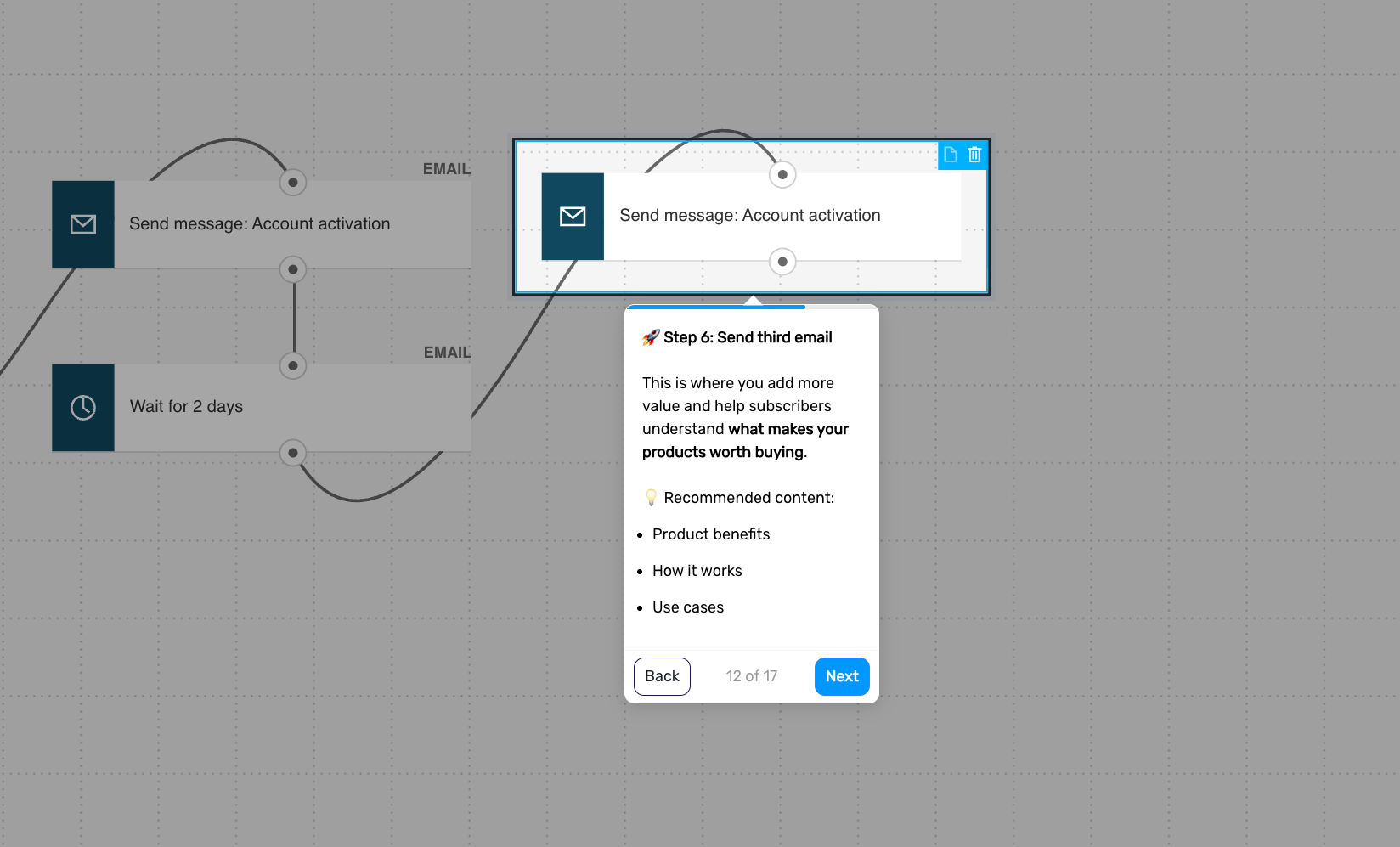
Step 6. Send a value-driven message
Continue with a message that helps subscribers understand your product and what makes it worth buying.
Focus on:
benefits
use cases
how it works
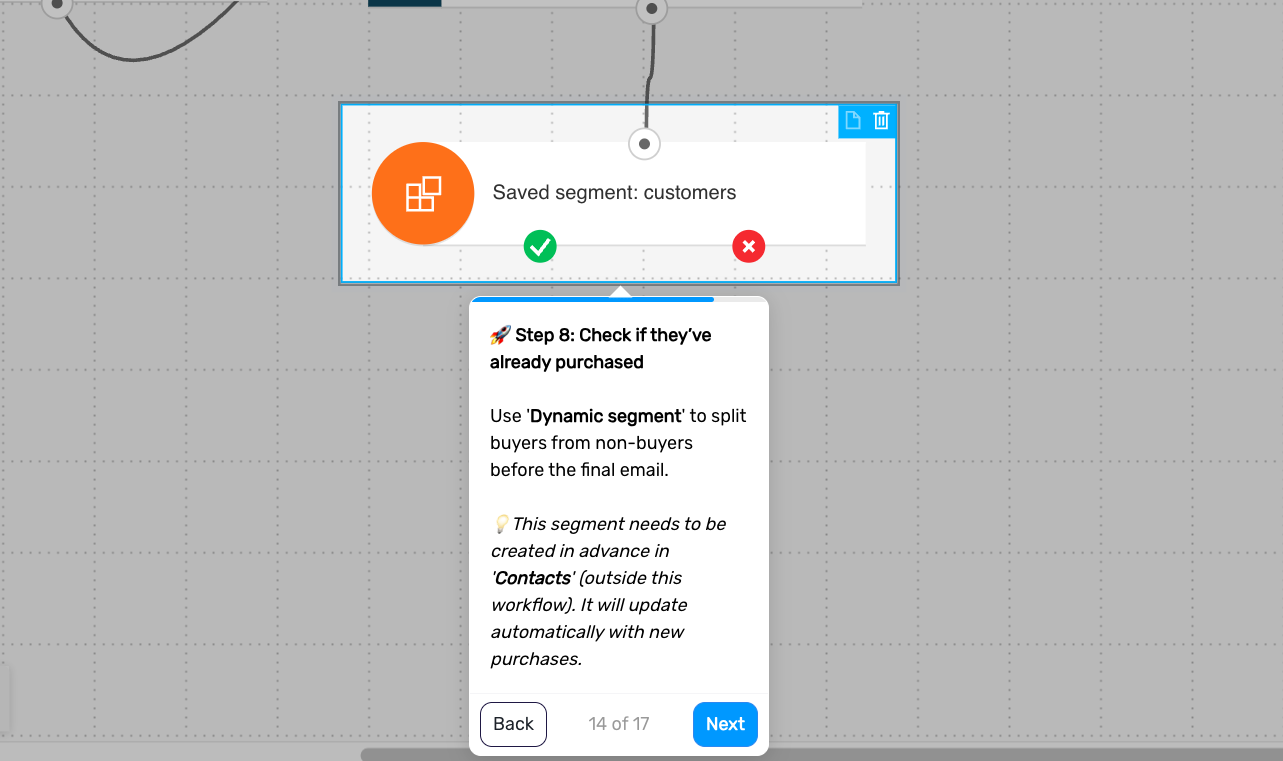
Step 7. Check for purchase
Check whether the subscriber has already made a purchase. If they have, you can tag and remove them from the flow.
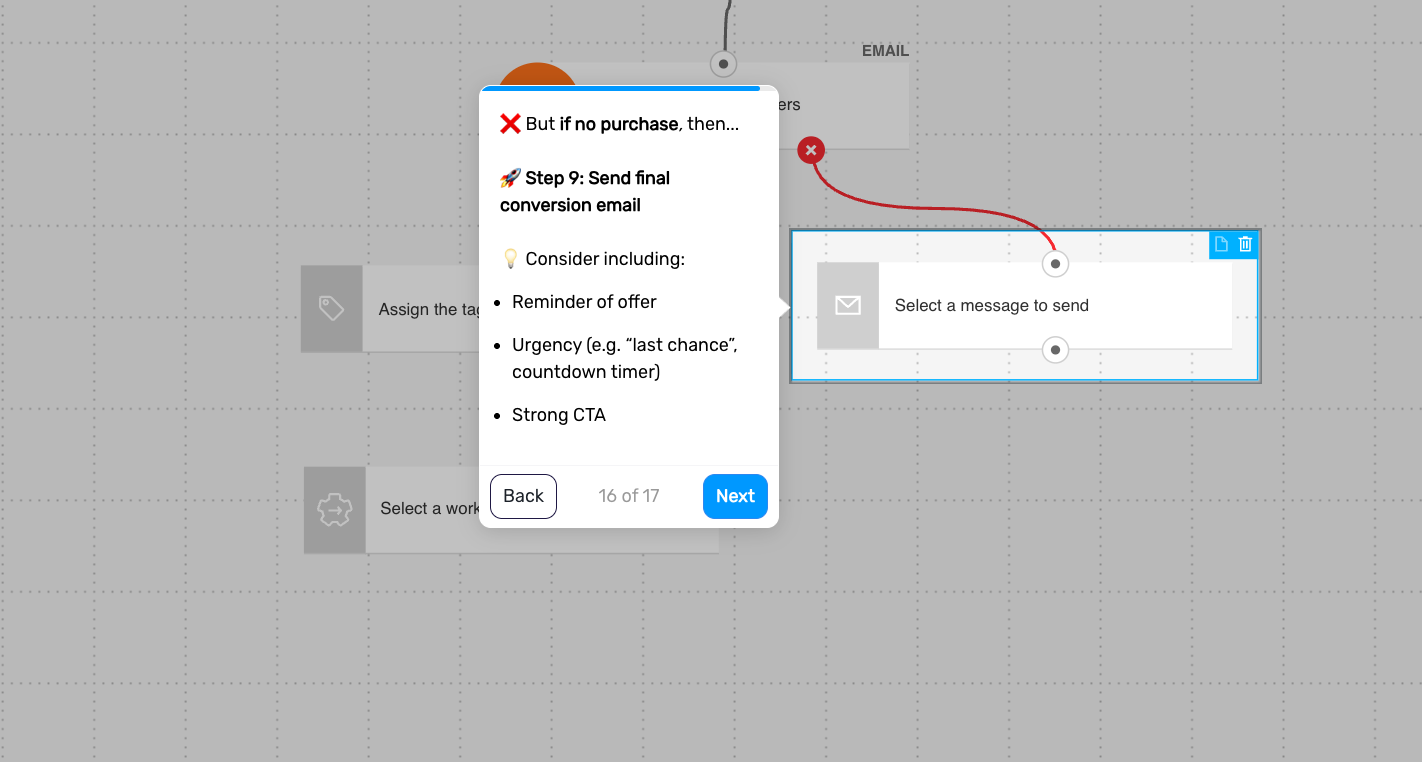
Step 8. Send the final email
Send a final message that focuses on conversion and encourages action.
You can include:
a reminder of the offer
light urgency
a strong call to action
After this, the flow ends.
Pro tip: To test different messages or flow structures, split traffic into separate paths and compare performance.