Step-by-step guide
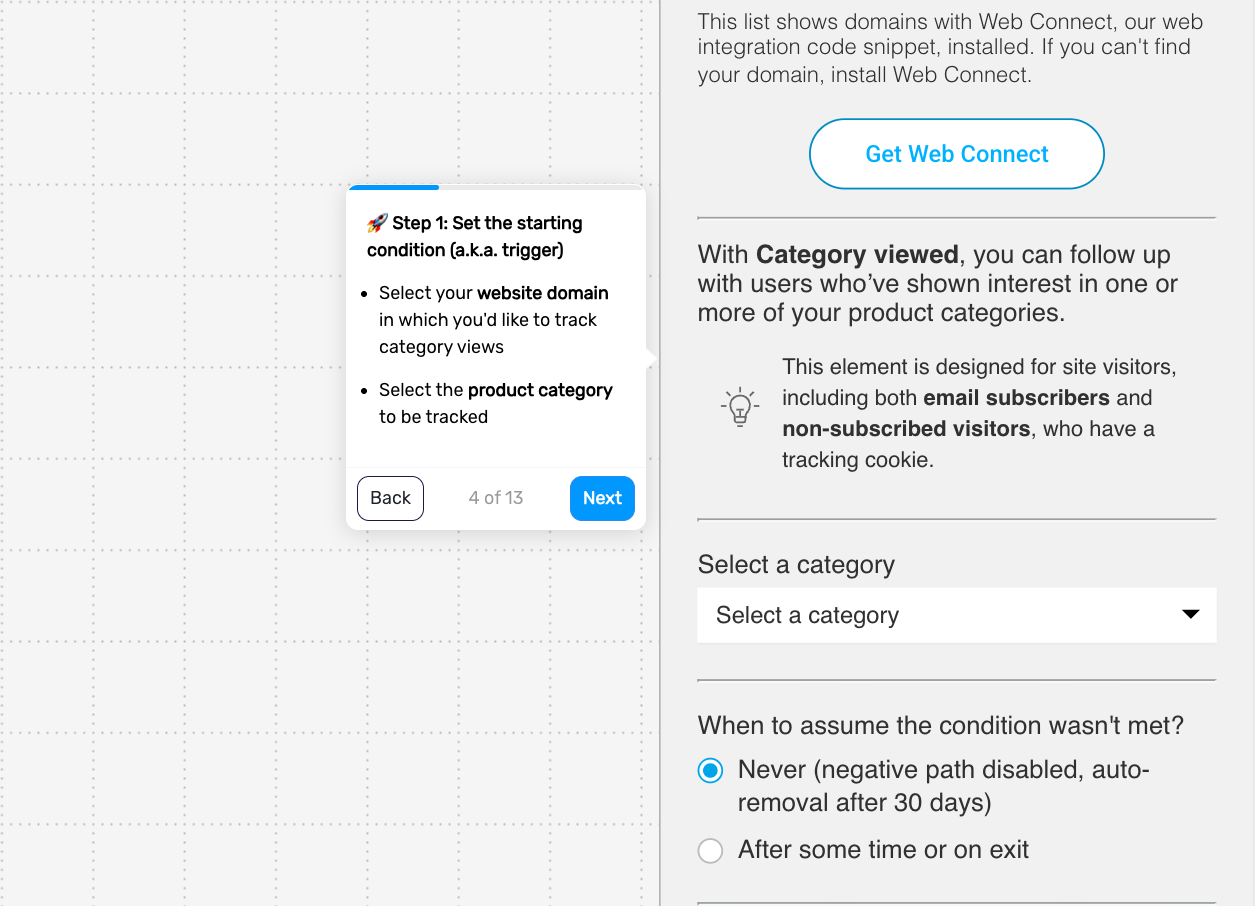
Step 1. Define when the flow is triggered
Trigger the flow when someone views a product or category page. This allows you to react to browsing behavior while interest is still fresh.
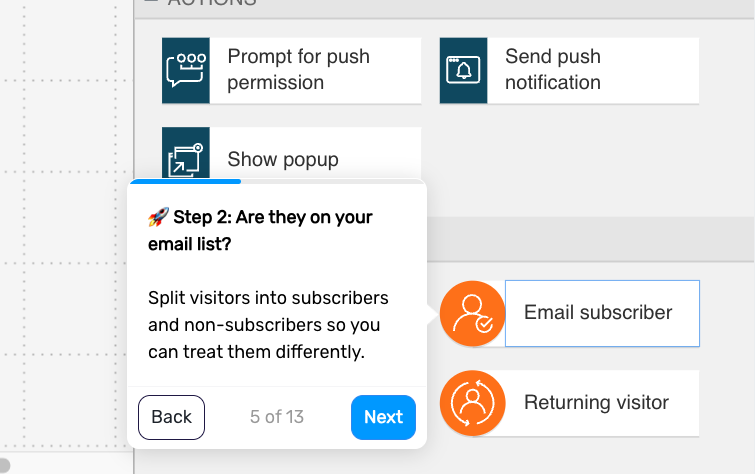
Step 2. Check whether the visitor is already on your list
Split the flow based on whether the visitor is an email subscriber. This lets you respond differently to known contacts and anonymous visitors.
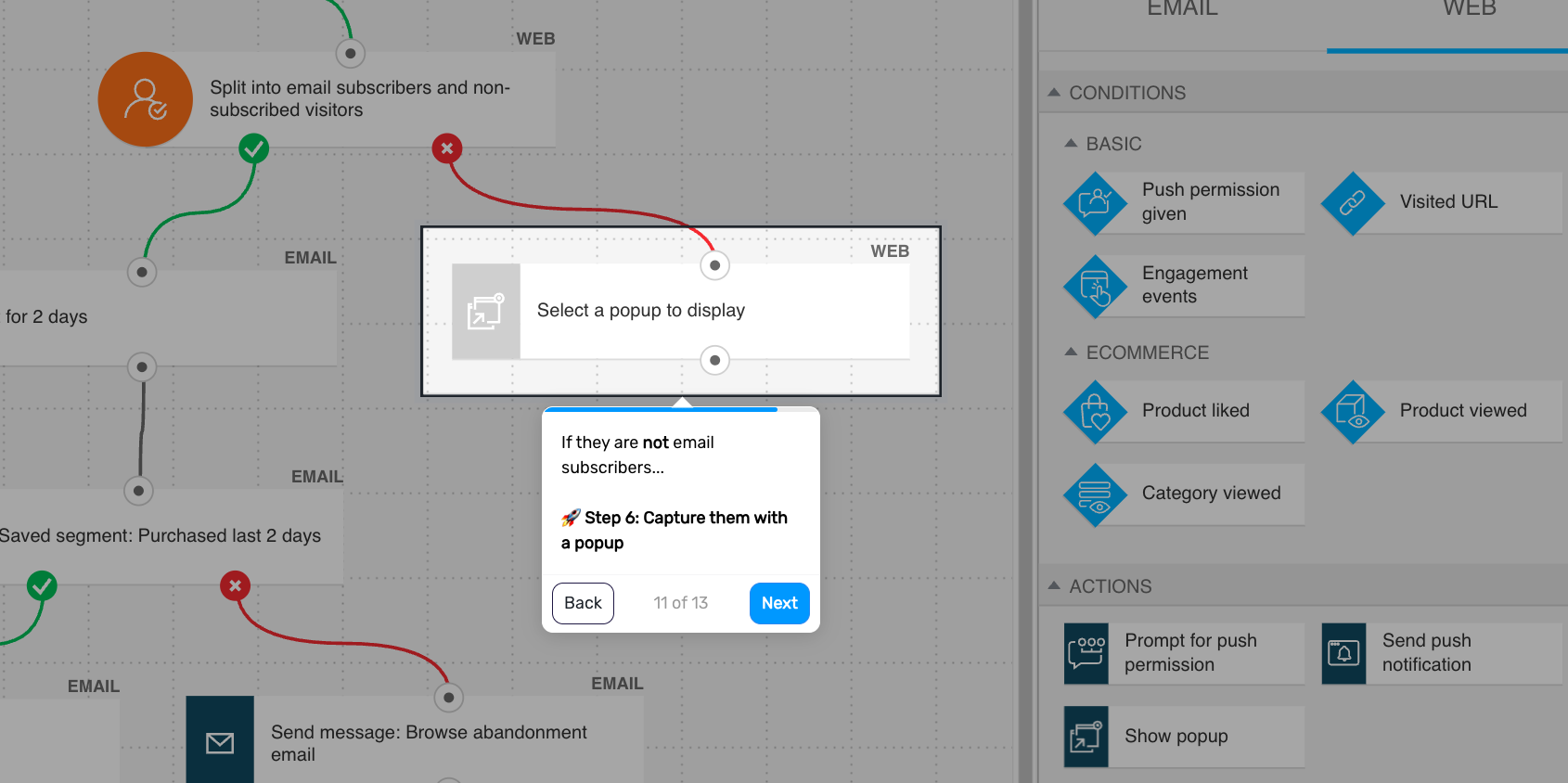
Step 3. Show a popup to non-subscribers
If the visitor is not yet on your list, show a targeted popup that encourages them to subscribe.
Include:
a discount code
a signup form
a short value proposition
a clear call to action
optionally, a countdown timer
Step 4. Add a delay for subscribers
If the visitor is already on your list, wait 1–2 days before following up. This gives them time to continue browsing or purchase on their own.
Pro tip: Use a longer delay for higher-consideration products, where customers are more likely to compare options before buying.
Step 5. Check for purchase
Before sending a follow-up, check whether the subscriber has already made a purchase. If they have, assign them a tag and remove them from the flow. If not, continue.
Step 6. Send the browse abandonment email
Follow up with a message that reconnects the subscriber with the product or category they viewed.
Include:
a reminder of the viewed product or category
product benefits
social proof or reviews
a clear call to action
optionally, recommended products
Pro tip: Dynamic AI product recommendations can make this message far more relevant by showing the exact products a subscriber viewed or similar products they may be interested in.
Step 7. End the flow
The flow ends after the popup is shown or the browse abandonment email is sent.
Pro tip: Segment browse behavior by depth (e.g., product page vs. category) and vary your messaging accordingly – treating all browsing the same often leads to generic follow-ups that underperform.